Sunday, June 12, 2016

Angular2 for Angular1.x developers

If you are an angular 1.x developer and trying to migrate in to Angular2 here are some points which you need to keep in mind.


1. Where are singleton factories and services ,

     Angular1.x    We had lazy singleton  instances of services and factories for entire scope of the application. We had one injector for entire app who is responsible creating an instance of a service or a factory when it is requested by some component.
     Angular2     Here we have a hierarchical set of interjects , which makes a tree similar to component tree in the application. That makes previous concept of singletons little bit complex.  Because we can have different instances of same class in different injectors that means in different levels in the components tree. Here how its done,

Create Application level singleton (This is discouraged ) ,

 1. Bootstrap the application with the provide specified
  bootstrap(AppComponent,[YourServiceForEntireApp]);
 2.And then don't specify  the service name in the metadata for the component ,

  1. @Component({
  2. selector: 'my-component',
  3. template: `
  4. Some template
  5. `,
  6. providers:[YourServiceForEntireApp]// Don't do this
  7. })
The component level injector will look for the instance of  YourServiceForEntireApp in the current component level injector since it is not there it will look upward and get the application level instance.This is discouraged because in most of the time a service will responsible for a part of the application.

 Create singleton for part of the application

1. Specify service in provider section in the parent component which cover the area of the application which need to keep a singleton instance
  1. @Component({
  2. selector: 'my-parent-component',
  3. template: `
  4. <h2>Parent</h2>
  5. <router-outlet></router-outlet>
  6. `,
  7. providers:[YourServiceSingletonUnderthisComponent],
  8. })
  9. export class HeroesComponent { }

 2. And make sure you don't specify YourServiceSingletonUnderthisComponent in  providers of child components under this.

Thursday, December 12, 2013

StackNotifier - StackOverflow Extension for chrome , with desktop notifications

Welcome to my first ever chrome extension. I have prepared a small lightweight extension to display new questions in stackoverflow.

 User can subscribe several tags and the extension will show the desktop notifications whenever new questions available. If you are a stackoverflow fan this will make your life easy. You don't have to keep open a tab and do refresh to see new questions to answer.


 In the settings page currently user can specify set of tags separated by semicolon and a time interval to be used to check new questions .


Add it here , https://chrome.google.com/webstore/detail/stacknotifier/dkicpibgdednbmlclkbcehckpfficabn

 Happy StackOverflowing... 

Tuesday, January 29, 2013

Version Control For An Agile Team

Version control for an agile team A version control system is not just a tool to manage the content of a project, it's defines how the project team collaborate and interact with each other. And it plays an important part when the team decides how they are going to manage the changes to the code. Version controlling systems started with lock based version controlling with RCS, SCCS in 70’s. And the next generation CVSwere CVS in 1986, Perforce (1995), CVSNT (1998), and then we got Subversion (2000); they were commonly referred as centralized version controlling systems which means they have a central repository which keeps all the content and the history. Individual clients (team members) have their local code which can be sync with the central repository. And also a client can get the historical versions of the files as well.


Figure1: Centralized version controlling
In this type of version controlling systems every change had to be submitted to the central repository. Let's say A needs to some change and B need's to get that change to proceed his work. Then A should check-in or push the change to the central repository and B need's to get or pull those changes from the central server. These changes will also be visible to C, whether this is desired or not. This model is called a centralized version control systems. Arch, Monotone and Bitkeeper were the first Distributed version control systems (DVCS). In December 1999 Linus Torvalds, the creator of Linux kernel, chose Bitkeeper in order to manage the mainline kernel sources. At that time Bitkeeper was the only truly distributed version control system which had repositories for every user of the source control system. That means in a DVCS all the clients have a repository which can be called a local repository containing all historical revisions and branches.
Figure2: Distributed Version Controlling

So in this model since each endpoint has the total repository it can be act as a server itself. There is no central point which controls everything but each endpoint can directly push or pull updates from any other endpoint which makes it kind of a peer to peer network.
Figure3: DVCS in operation

 One of the advantages of having a local repository for each endpoint is that we can work offline without connecting to a central repository like centralized version control systems. Since all the historical data is in the local repository we can get older versions and even merge them offline. This make developers work easy because developers can work where ever they are. And in distributed version control systems branching and merging is an easy task compared to other version control systems because every change acts as a kind of a branch and we need to merge that to the main branch. This is because DVCS's keep change sets instead of versions of the file. When we do a commit what it stores is the change we have done instead of a new version of older file like most of the centralized version control systems. This makes merge easy since it's just applying sequence of changes to a file instead of merging two versions of a file.
 By encouraging branching and merging DVCS offers flexibility for the developers to experiment new ideas without affecting the main branch. For agile teams it's really important to have flexibility to change the code and experiment new requirement in different ways. Let's say for a new requirement or a feature team needs to do some R&D on several ways of doing it. Then with the DVCS team can create experimental branches to experiment different methods and if one experiment is successful then it's just a matter of merging that one in to the main development branch. For agile teams it's really important to have flexibility to change the code and experiment new requirements in different ways. For example, the team needs to do some R &D to figure out the best approach to implement a new requirement or feature. Then with the DVCS team can create branches to experiment different methods and select the branch having the most successful experiment and then it's just a matter of merging that branch in to the main development branch.


Figure 4: Diagram showing experimental branches

 This allows developers to work freely. It doesn't really matter that a developer breaks the build in an experimental branch because he can work independently on their branch. And it increases the collaboration of the agile team because it's really easy to push the changes directly to any other member without affecting any other members in the team. This gives us another important advantage of DVCS for agile teams.


Figure 5: peer to peer communication

And this increases the collaboration and the effectiveness of agile teams. With the centralized model, if one team member needs to share his version of code with someone else, he needs to push his changes to the central server and then the other one needed to pull changes from the central. But in DVCS there is no central server to control; therefore one user can directly push his changes to any other user because it enables. This increases the effectiveness of an agile team in several ways because sometimes it is really important to work independently for two or three people in the team. And most importantly this enables two people to to do pair programmingwork withoutindependently without affecting other team member's code. And if you want to pair program remotely then the Dropbox will be the ideal tool.
 Figure 5 shows a model with one central repository and several team members. The central repository has the stable version of the code. This is somewhat similar to a centralized model. But the link between A and B is enabled by the DVCS. If A and B needs to some pair programming they can directly push and pull the changes. This is more important, because sometimes they need sync unstable code. Of course you can do it with other centralized version control systems as well .But in that case the changes need to be emailed to the other developer.

 Once we have chosen DVCS over centralized version control systems as the best option for our needs, then we need to consider which tool to use. Git and Mercurial are the well-known and widely used DVCS. Both of them are open source and have some similar functionality. Git is more complex to use rather than mercurial because it has more complex and more flexible model. Therefore mercurial is easy for someone coming from a centralized version controlling background to adapt to quickly. You may find links to good articles on git and mercurial at the references section. A version controlling system for an agile team should be agile too. That means the tool should be flexible enough for the team to use as a successful version controlling and a collaboration model. Choosing the right tool for a particular job is really important but it can be difficult task as well. Because we are familiar with one tool and mastered how it can be used, we tend to be bias towards it instead of looking at how a different tool can be more productive. But if we can change our mind set for exploring the different options we have and to choose the best tools that will help us, we can improve efficiency and the effectiveness of the team.

 Reference:

  1.  http://www.infoq.com/articles/dvcs-guide&num=30
  2. http://en.wikipedia.org/wiki/Comparison_of_revision_control_software

Sunday, April 22, 2012

Real Time Messaging On Web - Sample Using Socket.IO and Node.Js

Socket.io enables real time synchronization across browsers while using different underlying transport methods.It uses different transport mechanisms to support multiple platforms.To understand how it works we need to get some basic principles behind socket.io .First thing is it can use several transport mechanisms like xhr-polling,xhr-multipart,htmlfile,websocket,flashsocket, jsonp-polling.The client will decide what transport method to use .To start the connection it will do a basic http hanshake and then based on client it will decide the transport method. Then it will use a lite weight protocol to communicate.

I'm doing this example on node server on windows. If you are new to Node.js it's better if you go through my previous article Node.JS Sample Application On Windows. . Here I'm going to use socket.io on Node server.

First we need to install Socket.io on Node server. For that go to your project folder and use npm command npm install socket.io . It will install socket.io in to your folder as a node module.

Now you can see a folder has been(node_modules) created in your project folder.
Then we need to have our web page. Create the Index.html page and save it in the project folder ,


Welcome to socket.io .....


Next step to create the server app to serve the HTML page , Create the Server.js with following code and save it in the project folder.
var app = require('http').createServer(handler)
  , io = require('socket.io').listen(app)
  , fs = require('fs')

app.listen(8012);// give a port not used by other apps

function handler(req, res) {

    fs.readFile('index.html',
  function (err, data) {
      console.log(err);
      if (err) {
          res.writeHead(500);
          return res.end('Error loading index.html');
      }

      res.writeHead(200);
      res.end(data);
  });
}


So now we have all required files in project folder,

Then we can run our server, Go to the folder from comman prompt and exacute command node server.js
Then we can use the browser to see our index.html page user the url http://localhost:8012/
Then the important part, integration of socket.io for real time communication, There are several reserved event for the socket.io server, 'connection' - initial connection from a client.
'message' - "message" is emitted when a message sent with socket.send is received. function.
'disconnect'- fired when the socket disconnects.


For our sample app we can use the 'connection' event to send something on any connection , Append this code to the Server.js
io.sockets.on('connection', function (socket) {
    socket.emit('Initialdata', { hello: 'world' });
});


And then change your client (Index.html) to communicate with socket.io server with flowing code,


Welcome to socket.io .....


Then restart the node server (Again exacute node server.js command). Now you can see the alert by refreshing the web page,

So now we have up and running socket. Our next step is to make real time communicating clients. For that we need to add a text box and a button to the client and javascripts to send the message to the server to broadcast for other clients,


Welcome to socket.io .....

Now our client is ready for sending and receiving messages. Next step is to change the server to broadcast received message from any clients to all the other clients connected. Change the server with following code,
var app = require('http').createServer(handler)
  , io = require('socket.io').listen(app)
  , fs = require('fs')

app.listen(8012);

function handler(req, res) {

    fs.readFile('index.html',
  function (err, data) {
      console.log(err);
      if (err) {
          res.writeHead(500);
          return res.end('Error loading index.html');
      }

      res.writeHead(200);
      res.end(data);
  });
}

io.sockets.on('connection', function (socket) {
    console.log('Socket Created...');

    socket.emit('InitialData', { Message: 'Hello World !' });

    socket.on('sendMessage', function (data) {
        socket.broadcast.emit('messageRecieve', data);
    });
});

We are ready with our client and the server. Restart the server again using node server.js , and open two browser windows( http://localhost:8012/ ) to demonstrate multiple clients scenario ,

Saturday, March 31, 2012

Node.JS Sample Application On Windows

I am I'm kind of new to  Node.js   world. I took nearly a week reading tutorials and downloading samples to say "Hello World" to Node.Js and to Socket.io. Finally today I have achieved it :). Let me document what I have done here before I forget all the things. Here I'm going to describe the first step running first Node server on windows. I will go through step by step starting from the downloading  Node.js .

Download and Install Node.js
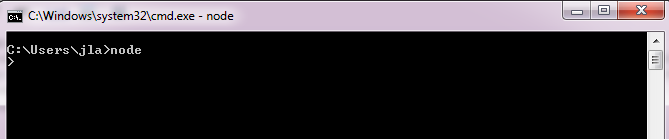
We can download Node.JS server for windows from here . Nothing to configure... Just download and install it. You can check whether you have installed it correctly using command prompt. Type node and press Enter you will get the node prompt.

Host the sample script
This is the sample code for  hello world server.

var http = require('http');
http.createServer(function (req, res) {
  res.writeHead(200, {'Content-Type': 'text/plain'});
  res.end('Hello World\n');
}).listen(1337, '127.0.0.1');
console.log('Server running at http://127.0.0.1:1337/');

Create new text file and save above code as sample.js

Run Sample Server
Then go to your folder (using command prompt) which has the sample.js file and execute it using node by executing command node sample.js


Access It Using Browser
Open your browser and enter the address we have given in the sample.js file.

That's It !
I will go more detail in to node.js and socket.io in the next post :).

Monday, March 26, 2012

Workflow Foundation 4 State Machine as a WCF Service

State machine workflow which we had in WF3.5 was not supported in WF4 (in .Net Framework4). But it released with .net framework 4 platform update 1 . State machine is very helpful to model long running workflows with higher external interactions. As an example in a long running order processing system where it needs several user inputs and approvals from external users.
There are several examples state machines in MSDN which describe the state machine well. But here I'm going to expose the state machine as a service. My example is a simple order processing system which has some human interaction to approve orders.

In this workflow there are three states(OrderRecived, To be Approved , Finished) and three triggers (Pay,IssueWithOrder,Resolve). We can create new order by giving an orderId and some amount.Then to complete the order we can pay using Pay trigger. Or else if there any issues with the order we can use another WCF call to workflow to change the state(to restrict pay) using IssueWithOrder trigger. The Resolve trigger is used to resolve the issues when they have any issues.

Download Sample Code


To expose the triggers as services what we need to do is to use send receive activities in triggers.
And the other important thing is correlation handling. Because when we need to call a already instantiated workflow instance we should have some identity to call the correct workflow instance. So in my example the correlation handler is the orderId. Because it is unique for an order which is unique for a workflow instance. So I have a state machine level correlation handler which uses the order id to correlate and each and every WCF call the workflow instance will use that variable as the correlation handler.
You can download my sample code here.

Sunday, February 19, 2012

Workflow Foundation 4 App-fabric Tracking Variables

Windows Server AppFabric provides a great set of tools and options to manage, scale and monitor application hosted in IIS. Especially for windows workflow applications AppFabric is a required tool to monitor , control and to scale the work-flows.

AppFabric Contoso HR Sample is a good tutorial to start with WF with AppFabric. In this post I'm going to describe how to add tracking variables to the Appfabric event log. This is a huge requirement when we are dealing with WorkFlows. Because in events written by AppFabrric contains a Guid to identify the workflow instance. But it is better if we can write our own id of the workflow in to the tracked events.

Let' say as an example in a order processing system. In this case the order we want to track the worrkflow instances by the order id. So here is how I did it,

First we need to define new tracking profile in the web config system.serviceModel section.


We can create several queries as we want. It may be queries for all activities or some specific activity. The query with activityName="*" will write orderid to the event log in all activities of the activity while query with activityName="Process New Order" will write several other variables in "Process New Order" activity to the events.
To enable this tracking profile for the service we need to go to the Appofabric configuration of the relevant service. Go to AppFabric dashboard of the service -> Services ->Select the service and click Configure .
And then go to Monitoring -> Configure , From the dropdown menu select our tracking profile (My Tracking Profile)

Then when the workflow is running we can see the tracked events with our our variables in tracked variables section.

Tuesday, January 24, 2012

Converting .Net Object In To JSON Object ASP.Net MVC

If you want to convert your .Net object in to a JSON object in the view the first thing you can use is to use System.Web.Script.Serialization.JavaScriptSerializer object and convert it in to JSON.
@{
System.Web.Script.Serialization.JavaScriptSerializer serializer = new System.Web.Script.Serialization.JavaScriptSerializer();
//....

<script>

var s = @serializer.Serialize(Model);
</script>

}

This is MVC3 Razor syntax. The problem here is in the @ sign it will again HTML encode the JSON object which lead you to flowing error.
var s = { "Name":"a","Id":1};
Create:228Uncaught SyntaxError: Unexpected token &

To avoid this we can use HTML.Raw() helper method like below.
var s = @HTML.Raw(serializer.Serialize(Model));

The easiest and the most reusable way of doing it is to write a helper method link this,
public static MvcHtmlString ToJson(this HtmlHelper html, object obj)
{
  JavaScriptSerializer serializer = new JavaScriptSerializer();
  return MvcHtmlString.Create(serializer.Serialize(obj));
}

And then in the view we can use this helper method

Tuesday, November 8, 2011

ASP.Net MVC Submit Collection Of Models

If you are using ASP.Net MVC for your presentation layer there are situations where you want to submit collection of view models. As an example lets say you have view models like this,

Person

  • Id : int
  • Name : string
  • Addresses : Ilist

Address

  • Id : Int
  • Line1 : string
  • City : string
  • Type : string
The Person view model has a collection of addresses. 

Then you need to have an edit view for the person to edit all the details of the person view model. In the edit view there will be code like this to display current addresses to the user to edit/ add new or delete .

@model YourNameSpace.Models.Person
@using (Html.BeginForm("Edit", "Person", FormMethod.Post, new { enctype = "multipart/form-data", id = "personEditForm" }))
{
///.................
               @foreach (var address in Model.Addresses)
                   {
                        @Html.HiddenFor(m,address.Id);
                        @Html.EditorForl(m, address.Line1);
                           //............
                   }
//....................................
}
This will generate HTML for the address Id  and address Line1 like this,

…..


…..


……


Because there are several inputs with same name we can't submit all values in the form For that the names should be like "Addresses[0].Line1" as below.
…..


…..


……


Of course you can achieve this by creating an editor template for address. But you will be in trouble when you delete some address in the middle of the sequence. And also if you have more properties like address for the person view model it will abuse your template folder.
This is the solution which I created with help of jQuery. I have written a jQuery function to reset all the names of those collection properties . To get the collection name I have added a wrapper div for each address . Before reset the names the HTML is like this,
…..
…..
……

And then I added this jQuery to onClick event to reset names before submit,
$("#submitButton").click(fuction(){
 $('.collection').each(function (index, domEle) {
           var property=$(this).attr('propertyName');
             $(this).children('div').each(function (index, domEle) {
                 $('input,select',$(this)).each(function (){
                    var oldName;
                
                    var name= $(this).attr('name')+'';
                    var i=  name.indexOf(']');
                    if(i>0){
                         oldName= name.substr(i+2);
                     }else {
                         oldName=  $(this).attr('name');
                         
                     }
                     $(this).attr('name',property+'['+index+'].'+  oldName);
                     $(this).next('span').attr('name',property+'['+index+'].'+  oldName);// need to change the names of validations messages too.
                     $(this).next('span').attr('data-valmsg-for',property+'['+index+'].'+  oldName);
                });
             });
     });   
});


After reeting the names the HTML will be like this,
…..
…..
……

Sunday, October 23, 2011

ASP.Net MVC Client Validation For Dynamically Added Form

This is how I have implemented the client side validation with MVC3 client side validation with JQuery validation plugin. The requirement was to create a model dialog with a form which is loaded via an Ajax request to the server.

  1. Enable client validation in web.config
We need to enable client side validation in web.config application settings section like thism


 <appSettings>
          <add key="ClientValidationEnabled" value="true"/>
        <add key="UnobtrusiveJavaScriptEnabled" value="true"/>
 </appSettings>


    2 The form
 In your form you need to have a FormContext otherwise it will not generate validation attributes.  If the FormContext is null we need to create a new FormContext  like this in your view.
 
@{using (Html.BeginForm("Create", "Person", FormMethod.Post)
  {
      if (this.ViewContext.FormContext == null)
      {
          this.ViewContext.FormContext = new FormContext();
      }
    // .....
  }


    3 Phrase validation attributes 
 Then after the ajax request we need to phrase validation attributes using JQuery like this,<br />
 
$.get("@Url.Action("Create", "Person")", null, function (data) {
         $('#yourDivId').html(data);
         $("form").removeData("validator");
         $("form").removeData("unobtrusiveValidation");
        $.validator.unobtrusive.parse("form");          
   });

Saturday, October 22, 2011

Creating Categorized/Grouped Autocomplete Menu with JQuery

JQuery has given you a nice extendable library to create auto complete. But what if you want to customize it to have something like Facebook search autocomplete menu.  Here I have gathered several features of JQuery to make this customization. Here is my JQuery with ASP.net MVC3 but you can use whatever the backend which you can return a array of Json objects like this,
Here is my Search action in SearchController


And here is my JQuery code,


Monday, September 19, 2011

Convert MSTest code covarage results in to XML And view through Jenkins

If you are using Jenkins as your CI for a Net project it is not easy to publish code coverage results.In Jenkins without tools such as NCover wich is costly. Instead of this you can do this your own way.
First you need to convert MSTest results in to XML and then to HTML using xstl to publish it as an HTML report in Jenkins.
Step 1

GO to your test local.settings file in visual studio and set it to display the code coverage results an add your required targeted dll's. This is same as configuring visual studio to show the test results and code coverage.
Make sure you have added the test settings file to your version controlling system then it will be in the working space of the jenkins.
Then set path to the MSTest.exe
it may be in your \Microsoft Visual Studio 10.0\Common7\IDE folder


Step 2
Add a windows batch command to run MSTest (after running ms build) and to generate test results file (“reults.trx”) and Coverage report (“data.coverage”)

del results.trx
mstest /testcontainer:Example\TestProject1\bin\debug\TestProject1.dll /resultsfile:results.trx /testsettings:Example\local.testsettings


This will generate a code coverage result in binary format (data.coverage)

Step 3
write a console app to convert binary data.coverage file in to a XML and then it to HTML by xslt and run it after adding windows batch command in jenkins. Here is the example code for console app. Make sure you have add reference to Microsoft.VisualStudio.Coverage.Analysis.dll which you can find in the \Microsoft Visual Studio 10.0\Common7\IDE\PrivateAssemblies folder. And copy Microsoft.VisualStudio.Coverage.Symbols.dll to your bin directory which is also in same folder.


And here is the code of the style.xslt file


Thursday, July 14, 2011

Entity-Framework Differed loading (Lazy Loading) and immediate (Eager ) loading

You can use entity framework with lazy loading enabled to do everything . But when you try to do the performance testing you will find some crazy things going on inside. You can use SQL Server Profiler or a tool such as Entity Framework Profiler to see whats happening inside. By looking at SQL queries exacuting to ther server you can understand where to use Lazy loading or Immediate loading.
1.Lazy loading
Related entities are automatically loaded from the data source when you access a navigation property. With this type of loading, be aware that each navigation property that you access results in a separate query executing against the data source if the entity is not already in the ObjectContext. Here is a lazy loading enabled example
db.Configuration.LazyLoadingEnabled = true;// enable lazy loading
var student = db.Students.FirstOrDefault(st => st.PersonID == 1);// first queri will execute here
int i=student.Enrollments.Count;// Second query will execute here to load selected students enrolments

It will execute two separate queries to the server. First is to get student's sealer properties and second query is to load his enrollments.

2.Immediate/Eager Loading
In this type only one single request will go to the database. It will return all entities defined by the path in a single result set. You can specify the related data that you want to load with the query by specifying paths.
db.Configuration.LazyLoadingEnabled = false;
var student = db.Students.Include("Enrollments").FirstOrDefault(st => st.PersonID == 1);
int i=student.Enrollments.Count;

this will execute one query to load student's scaler properties and his navigational property(Collection of Enrollments).

How to choose the best method
You need to consider three things,

  1. How many connections that you are going to make with the database. If you are using lazy loading there will be a database call for all the reference points of a navigation properties if referred navigation property is not in the context.
  2. How much data that you are going to retrieve from databaseIf you choose to load all the data in initial query with differed loading it will be too slow when you have huge amount of data to retrieve.
  3. Complexity of the query . When you are using lazy loading the queries will be simple because all the data is not loaded in the initial query. If you use immediate loading it will make quires will be more complex with query paths

Saturday, July 9, 2011

Jquery Post URL problems in IIS hosted Eenvironments

If you have used JQuery post with ASP.Net MVC the URL in the post will be something like
"YourControllerName/ActionName"
Example:-
$.post("Home/CreatePerson", { name: "John", time: "2pm" },
    function(data) {
    alert(data);
});
This will work great until you deploy your project in IIS with an alias to your web application. Let say the give alias is "MyWeb". The the URL will be -your-iis-server-ip/MyWeb. But the Jquery post in above will post its data to a URL something like -your-iis-server-ip/Home/CreatePerson

To avoid this you need to create post URL dynamically using @Url.Action() helper. Here is the corrected JQuery post.

$.post("@Url.Action("CreatePerson", "Home")", { name: "John", time: "2pm" },
    function(data) {
    alert(data);
});

Sunday, June 26, 2011

Ncover Installation in windows server 2008

Recently I was trying to install Ncover in Windows Server 2008. Even though I had installed .Net framework 4.0 Ncover setup threw an error saying that "you need to have .Net 3.5 or above to install NCover".I had re installed .Net Framework 4.0 several times ad restarted the server but no effect.
Then I went to the server manger panel and I saw a section called feature summery. In add features section you can add .Net framework 3.5 features. After a restart everything worked fine.

Tuesday, June 21, 2011

Ncover Command Line For MSTest

If you are using MSTest here is the command windows batch command to generate test results

"C:\Program Files (x86)\Microsoft Visual Studio 10.0\Common7\IDE\mstest.exe" /testcontainer: \yourTestProjectPath\YourTests.dll /testcontainer: \yourTestProjectPath2\YourTests2.dll /resultsfile:results.trx /testsettings:YourTestSettingsPath \local.testsettings


You can add several test projects using /testcontainer: argument. Here I have used two test projects. To use NCover we need to change this command by adding NCover commands . NCover arguments are started with “//” and for MSTest they started with “/”. Here Is the Ncover command to generate coverage.nccov and coverage.trend files.

"C:\Program files (x86)\NCover\NCover.Console.exe" "C:\Program Files (x86)\Microsoft Visual Studio 10.0\Common7\IDE\mstest.exe" //x mstest_coverage.nccov //at "coverage.trend" /testcontainer: \yourTestProjectPath\YourTests.dll /testcontainer: \yourTestProjectPath2\YourTests2.dll /resultsfile:results.trx /testsettings:YourTestSettingsPath \local.testsettings


There are more options with NCover you can find those here Ncover command line

Now we have coverage.nccov and coverage.trend files we need to generate a HTML report from these two. For that we can use Ncover Reportng tool. Here is the Command to generate NCover HTML reports.

ncover.reporting mstest_coverage.nccov //lt coverage.trend //or FullCoverageReport:Html:output

Here we are generating full Coverage report in the directory called output